> ## Documentation Index
> Fetch the complete documentation index at: https://docs.edges.run/llms.txt
> Use this file to discover all available pages before exploring further.
# Building Chrome Extensions for LinkedIn & Source Code
> Best practices for building Chrome extensions tailored for LinkedIn and accessing source code examples.
Having built many Chrome Extensions in recent years and accumulating more than 20k users, as well as helping customers build their own,
we've developed a simple pattern to reduce your time to release and make sure your extension is approved.
This guide is a bit technical; you'll potentially need the help of a developer
for the following steps.
## Source Code
Complete source code is available on
[GitHub](https://github.com/edgesrun/chrome-extension-skeleton).
Following the README, you should have no difficulties building your own Chrome Extension.
Keep it simple and focus on moving most of the logic to an API. This reduces
debugging efforts and the need for frequent updates to the Chrome Extension
itself, which always requires a review from Google.
## Coding Tips
Overall proces:
* The extension retrieves cookies (`li_at`, `li_a`), stores them in **local storage**, and uses them for authentication.
* A process is already in place to update these cookies every hour using `chrome.alarms.onAlarm`.
Communication with the front-end:
* The front-end sends a message to the extension (e.g., `msg_fetch_cookies`).
* The extension responds by retrieving cookies and storing them in Chrome’s **local storage** first.
Always check the extension is installed before synchronizing cookies or
launching actions. For example send `msg_fetch_extensionId` from your front
and return from the extension the `extensionId` using `chrome.runtime.id`.
Refer to the [source
code](https://github.com/edgesrun/chrome-extension-skeleton/blob/main/settings/settings.js)
for examples.
Debugging the extension:
* You can check logs in **Google Chrome > Extensions > Manage Extension > Service Workers**.
* Use **console.log** to debug issues.
Remember to use proper storage & identification:
* Store cookies by **YOUR** **User ID (internal), Edges User ID, and Account ID** to **avoid mix-ups**.
* Use `chrome.storage.local.set()` to store data.
## Store Listing Tips
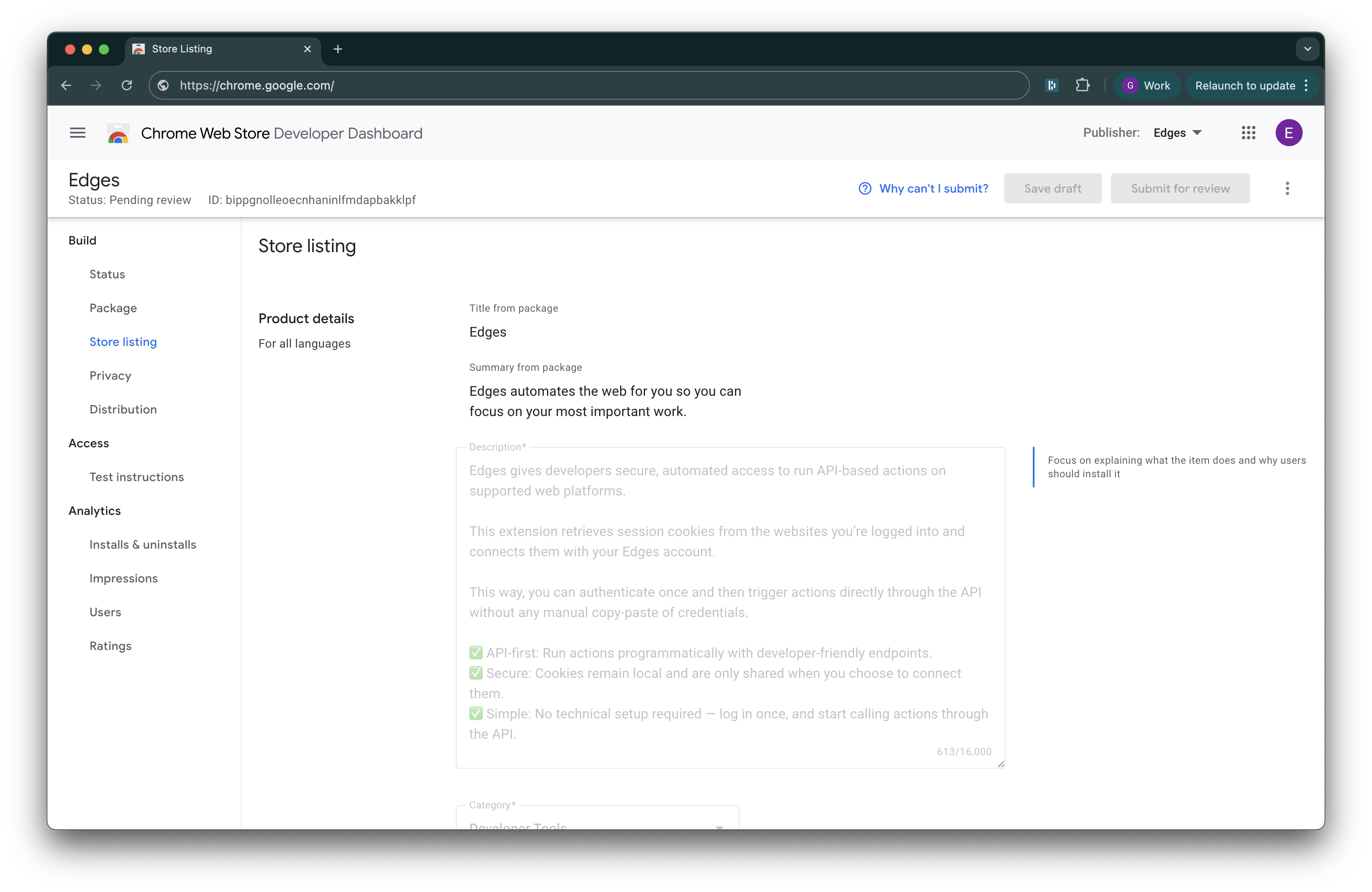 When preparing your Chrome Extension for submission to the Chrome Web Store, follow these tips to ensure approval:
* **Fill in the Store Listing Thoroughly**: Pay special attention to the “Privacy” section.
* **Minimize Permissions**: By following our coding tips and requesting only the minimal necessary permissions, you can avoid complications during Google's review process.
Google reviewers do read the code, so keep it clean and straightforward!
## Updating Your Extension
To update your Chrome Extension:
1. Change the version number inside the `manifest.json` file.
2. Zip the updated files.
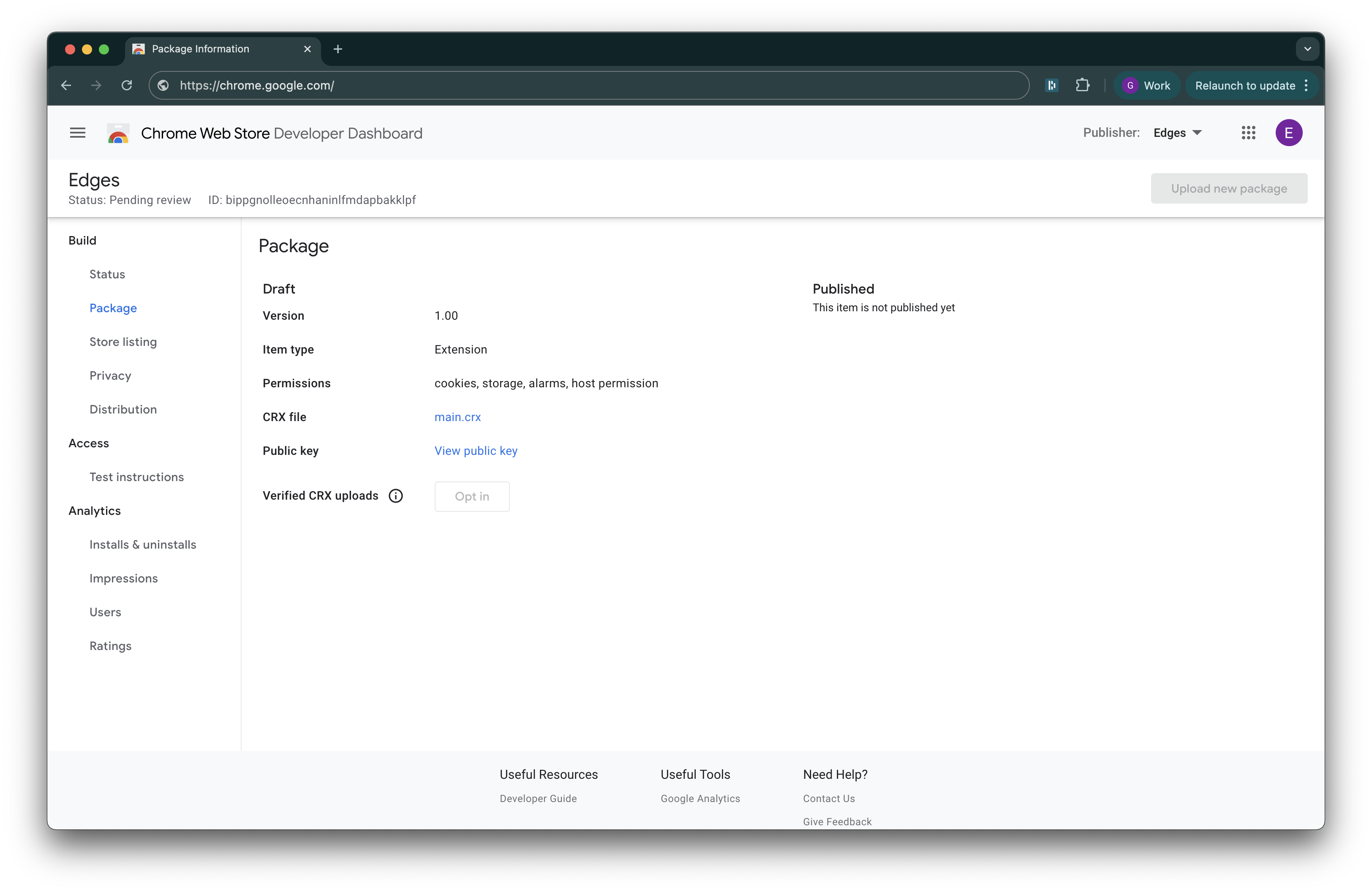
3. Click on "Upload new package" in the Chrome Web Store dashboard under Menu > Package.
When preparing your Chrome Extension for submission to the Chrome Web Store, follow these tips to ensure approval:
* **Fill in the Store Listing Thoroughly**: Pay special attention to the “Privacy” section.
* **Minimize Permissions**: By following our coding tips and requesting only the minimal necessary permissions, you can avoid complications during Google's review process.
Google reviewers do read the code, so keep it clean and straightforward!
## Updating Your Extension
To update your Chrome Extension:
1. Change the version number inside the `manifest.json` file.
2. Zip the updated files.
3. Click on "Upload new package" in the Chrome Web Store dashboard under Menu > Package.
 ## Need Help?
Don't hesitate to reach out to our support team if you need assistance with building or submitting your Chrome Extension.
## Need Help?
Don't hesitate to reach out to our support team if you need assistance with building or submitting your Chrome Extension.